Learning Examples | Foundations | Hacking | Links
Examples > Esplora
Esplora Joystick Mouse
This sketch shows you how to read information from the Esplora's joystick and use it to control the movement of the cursor on your computer. You're making your Esplora into a mouse!
This sketch will take over the mouse movement of your computer. If you lose control of your cursor do the following :
- unplug the Esplora
- open the EsploraBlink sketch in the Arduino software
- hold the Esplora's reset button down while plugging it back in to your computer
- while continuing to hold the reset button, click "Upload" in the Arduino software
- when you see the message "Done compiling" in the Arduino IDE, release the reset button
This will stop your Esplora from controlling your cursor while you upload a sketch that doesn't take control of the mouse.
Hardware Required
- Arduino Esplora
Circuit
Only your Arduino Esplora is needed for this example. Connect the Esplora to your computer with a USB cable and open the Arduino's Serial Monitor.
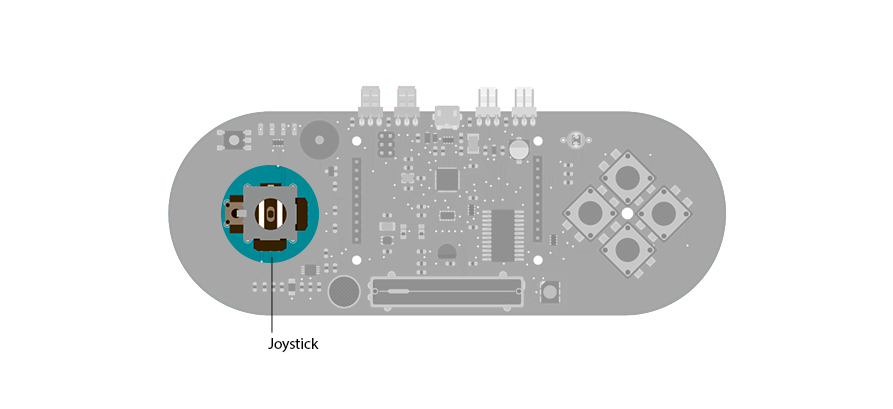
Joystick on the Esplora
Code
To send data to your computer, you need to open a serial connection. Use Serial.begin() to open a serial port at 9600 baud on the Esplora.
To start communication as a mouse, call Mouse.begin(). This makes the Esplora appear as a mouse to your computer.
To read the position of the joystick, call Esplora.readJoystickX() and Esplora.readJoystickY(), saving the values in variables. This gives you values between -512 and 512 for each axis. When the joystick is centered, the X and Y axes will report 0.
The joystick also acts as a switch when pressed. To read the button, call Esplora.readJoystickSwitch(). This will give you a value of 1 when pressed, and 0 when it is not.
To send the values to the Serial Monitor, you call Serial.print(). When the Esplora is connected, and the Serial Monitor is open, you should start to see values reported like this :Joystick X: 0 Joystick Y: 0 Button: 0
To get numbers appropriate for moving the mouse, use the map() function to scale the joystick values, saving these numbers into new variables.
To actually move the cursor, call Mouse.move(). It takes three arguments, the numbers represent the amount of movement on the x-axis, the y-axis, and the mouse wheel. This example only moves the mouse around on the x and y axes, use the new mapped numbers to move the cursor.
When you attach the Esplora, press Shift-Command-M in the Arduino software to open the serial monitor. As you move the joystick, you'll see the values in the serial monitor as the cursor moves around the screen.
Esplora Joystick Mouse
This sketch shows you how to read the joystick and use it to control the movement
of the cursor on your computer. You're making your Esplora into a mouse!
WARNING: this sketch will take over your mouse movement. If you lose control
of your mouse do the following:
1) unplug the Esplora.
2) open the EsploraBlink sketch
3) hold the reset button down while plugging your Esplora back in
4) while holding reset, click "Upload"
5) when you see the message "Done compiling", release the reset button.
This will stop your Esplora from controlling your mouse while you upload a sketch
that doesn't take control of the mouse.
Created on 22 Dec 2012
by Tom Igoe
This example is in the public domain.
*/
#include <Esplora.h>
void setup()
{
Serial.begin(9600); // initialize serial communication with your computer
Mouse.begin(); // take control of the mouse
}
void loop()
{
int xValue = Esplora.readJoystickX(); // read the joystick's X position
int yValue = Esplora.readJoystickY(); // read the joystick's Y position
int button = Esplora.readJoystickSwitch(); // read the joystick pushbutton
Serial.print("Joystick X: "); // print a label for the X value
Serial.print(xValue); // print the X value
Serial.print("\tY: "); // print a tab character and a label for the Y value
Serial.print(yValue); // print the Y value
Serial.print("\tButton: "); // print a tab character and a label for the button
Serial.print(button); // print the button value
int mouseX = map( xValue,-512, 512, 10, -10); // map the X value to a range of movement for the mouse X
int mouseY = map( yValue,-512, 512, -10, 10); // map the Y value to a range of movement for the mouse Y
Mouse.move(mouseX, mouseY, 0); // move the mouse
delay(10); // a short delay before moving again
}
See Also:
