Learning Examples | Foundations | Hacking | Links
Examples > USB (Leonardo)
Keyboard and Mouse Control
This example illustrates the use of the Mouse and keyboard libraries together. Five momentary switches act as directional buttons for your cursor. When a button is pressed, the cursor on your screen will move, and a keypress will be sent to the computer. Once you have the Leonardo programmed and wired up, open up your favorite text editor to see the results.
NB: When you use these libraries, the Arduino takes over your computer's keyboard and mouse!
Hardware Required
- Arduino Leonardo or Arduino Due board
- breadboard
- Five pushbuttons
- Five 10-kiloohm resistors
Software Required
- Any text editor
Circuit
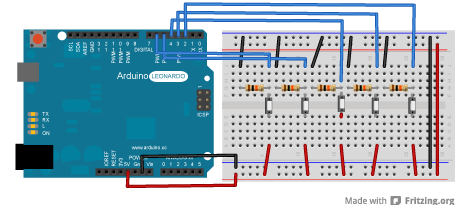
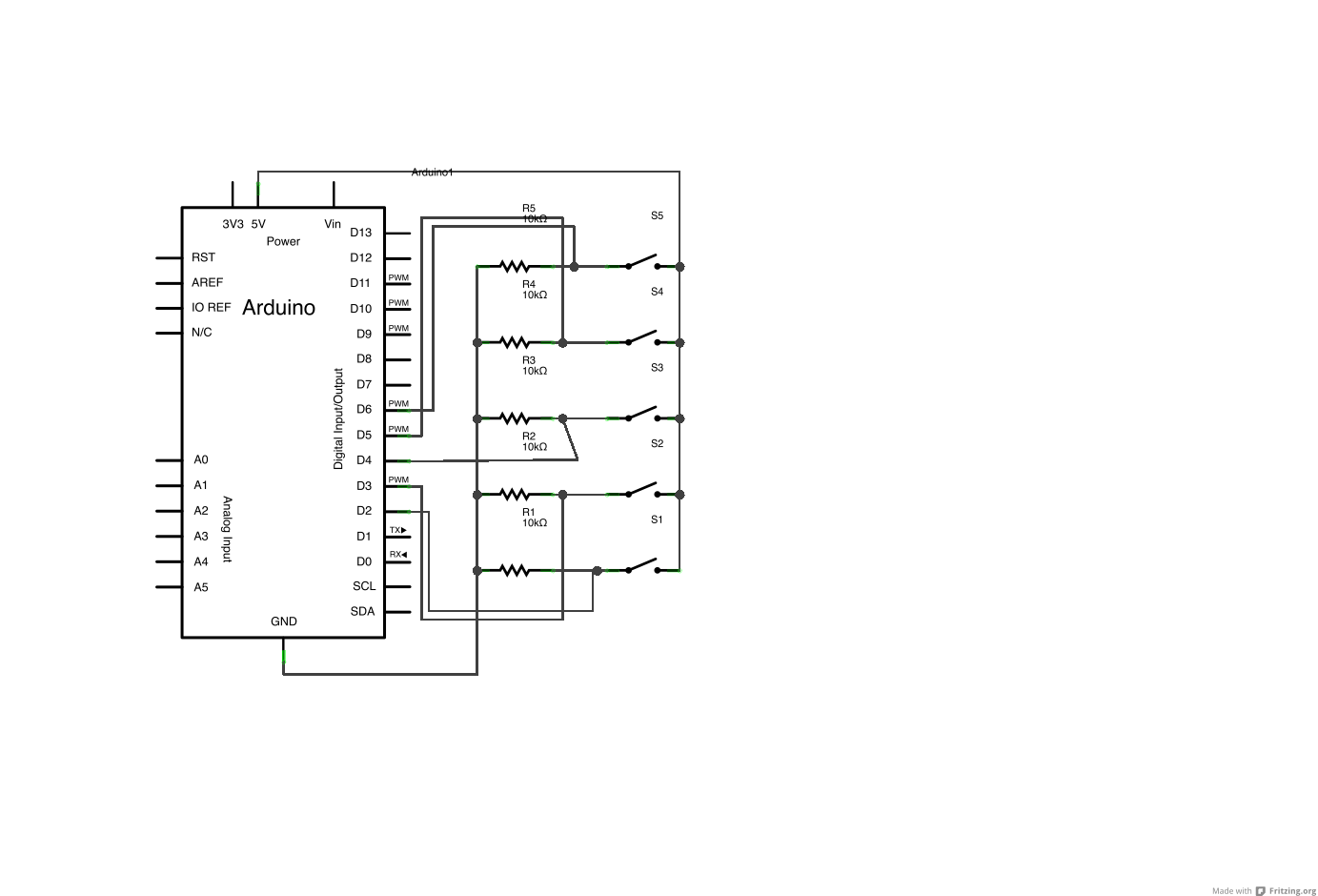
Attach one end of the the pushbuttons to pins 2, 3, 4, 5, and 6 on the Leonardo. Attach the other end to +5V. Use the resistors as pull-downs, providing a reference to ground for the switches. Attach them from the pin connecting to the Leonardo to ground.
Once you've programmed your Leonardo, unplug the USB cable and open a text editor. Connect your Leonardo board to your computer and press the buttons to write in the document as you move the cursor.
click the images to enlarge
Code
KeyboardAndMouseControl
Controls the mouse from five pushbuttons on an Arduino Leonardo or Micro.
Hardware:
* 5 pushbuttons attached to D2, D3, D4, D5, D6
The mouse movement is always relative. This sketch reads
four pushbuttons, and uses them to set the movement of the mouse.
WARNING: When you use the Mouse.move() command, the Arduino takes
over your mouse! Make sure you have control before you use the mouse commands.
created 15 Mar 2012
modified 27 Mar 2012
by Tom Igoe
this code is in the public domain
*/
// set pin numbers for the five buttons:
const int upButton = 2;
const int downButton = 3;
const int leftButton = 4;
const int rightButton = 5;
const int mouseButton = 6;
void setup() { // initialize the buttons' inputs:
pinMode(upButton, INPUT);
pinMode(downButton, INPUT);
pinMode(leftButton, INPUT);
pinMode(rightButton, INPUT);
pinMode(mouseButton, INPUT);
Serial.begin(9600);
// initialize mouse control:
Mouse.begin();
Keyboard.begin();
}
void loop() {
// use serial input to control the mouse:
if (Serial.available() > 0) {
char inChar = Serial.read();
switch (inChar) {
case 'u':
// move mouse up
Mouse.move(0, -40);
break;
case 'd':
// move mouse down
Mouse.move(0, 40);
break;
case 'l':
// move mouse left
Mouse.move(-40, 0);
break;
case 'r':
// move mouse right
Mouse.move(40, 0);
break;
case 'm':
// perform mouse left click
Mouse.click(MOUSE_LEFT);
break;
}
}
// use the pushbuttons to control the keyboard:
if (digitalRead(upButton) == HIGH) {
Keyboard.write('u');
}
if (digitalRead(downButton) == HIGH) {
Keyboard.write('d');
}
if (digitalRead(leftButton) == HIGH) {
Keyboard.write('l');
}
if (digitalRead(rightButton) == HIGH) {
Keyboard.write('r');
}
if (digitalRead(mouseButton) == HIGH) {
Keyboard.write('m');
}
}
See Also
