Arduino LCD playground | Serial_LCD Library Suite
Serial_LCD Serial Suite for 4D Systems Screens
The Serial_LCD library suite handles the μLCD, μOLED and μVGA screens from 4D Systems.
It manages text, graphics, touch, read and write on SD-card, sound, through a single serial UART interface, either hardware, software or I²C.
The library suite has been tested successfully with and supports Arduino 23 and 1.0, chipKIT MPIDE and Wiring.
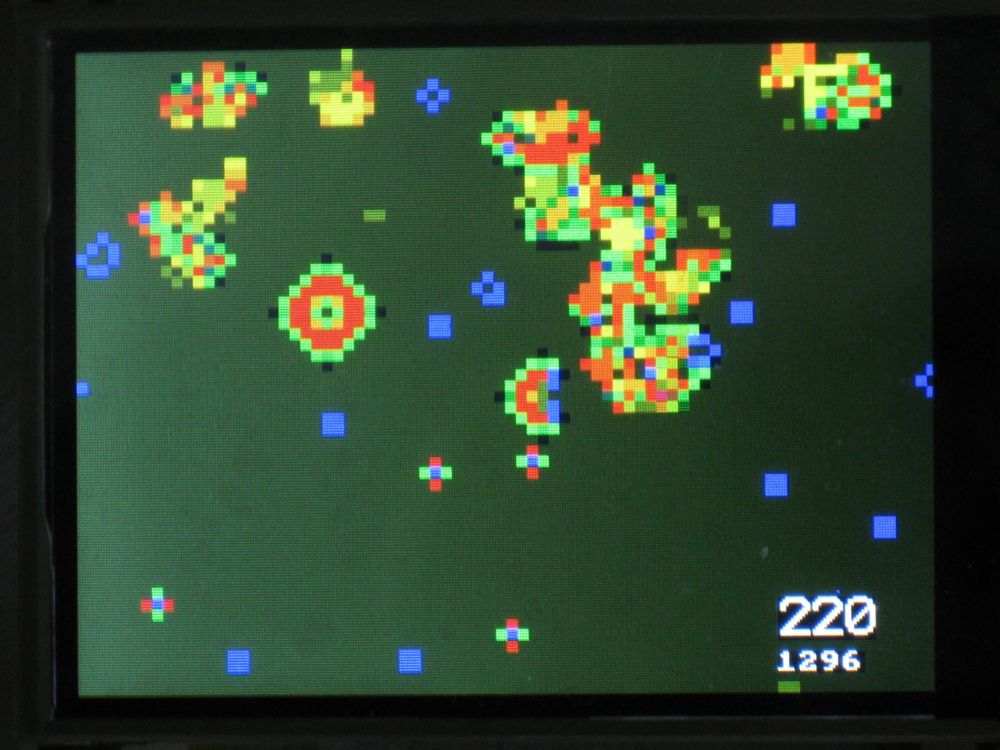
The game of life
High-Level Commands
High-level commands offer:
- GUI with label, button, menu, dialog box, slider
- dedicated Graphics as clock, yaw-pitch-roll, histogram, gauge
- and even Gallery, a picture frame!
Serial UART
A single serial UART connection is required.
It could be hardware, software or I2C port.
Dedicated Website and Forum Thread
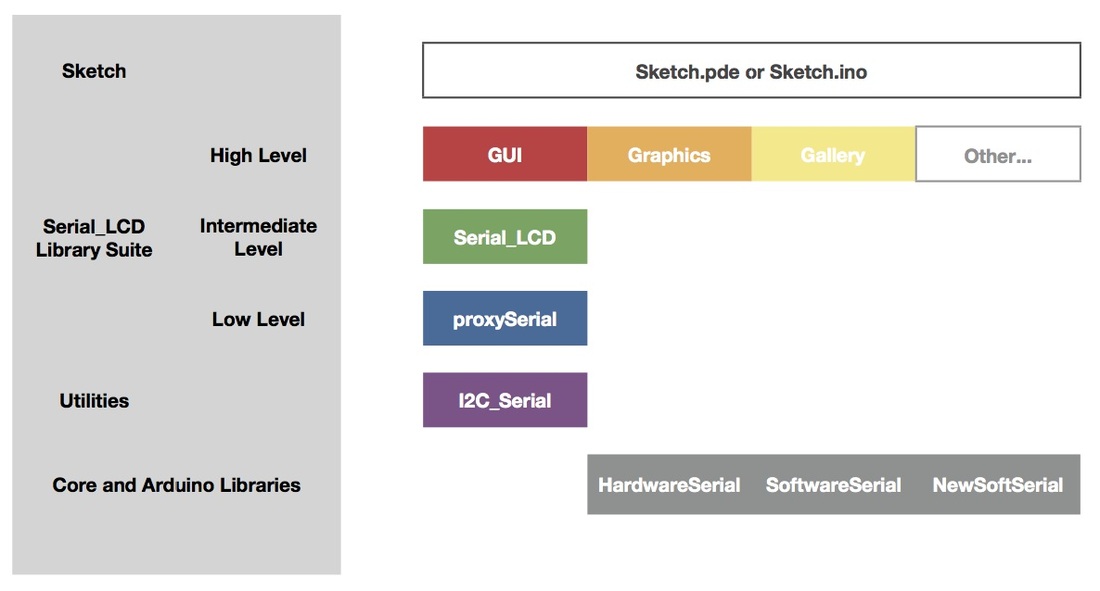
The dedicated website includes
- documentation on high level, intermediate level and low level libraries
- tutorials,
- examples with code,
- roadmap
- documentation in PDF, docset and HTML formats
- download
- and much more!
Check the official thread 4D Systems μLCD-μLED-μVGA Serial_LCD Library Suite on the Arduino forum.
Example code
This example initialises the screen, displays information about the screen, draws circles, shows and monitors a red Stop button. When Stop is pressed, the program exits.
#include "Serial_LCD.h"
#include "proxySerial.h"
#include "GUI.h"

#include "SoftwareSerial.h"  // for Arduino 1.0
SoftwareSerial mySerial(2, 3);  // declare serial port
ProxySerial myPort(&mySerial);  // hardware abstraction layer
Serial_LCD myLCD(&myPort);  // declare screen
button buttonStop;  // declare Stop button
uint16_t x, y;

void setup() {
    mySerial.begin(9600);
    myLCD.begin();  // initialise screen

    myLCD.setFont(2); // big font
    myLCD.gText( 0, 210, myLCD.WhoAmI());  // display screen info

   myLCD.setTouch(true);  // touch on

    buttonStop.define(&myLCD, 0, 0, 79, 59, setItem(2, "Stop"), whiteColour, redColour);  // define and display red Stop button
    buttonStop.enable(true);
    buttonStop.draw();

    myLCD.setPenSolid(true);  // draw circles
    for (int i=0; i<10; i++) {
        for (int j=0; j<10; j++) {
            myLCD.circle(120+j*10, 30+i*10, 30, random(0, 0xffff));
        }
    }
}

void loop() {
    if (myLCD.getTouchActivity()>0) {  // touch pressed?
        myLCD.getTouchXY(x, y);
        myLCD.setFont(0);
        myLCD.gText(200, 0, ftoa(x, 0, 5)); // display coordinates
        myLCD.gText(200, 15, ftoa(y, 0, 5));

        if (buttonStop.check()) { // Stop button pressed
            myLCD.off(); // quit
            while(true);
        }
    }
}
